Shadowban on Instagram: where this is actually checked
The platform has no such term: it has two bars and an “Account Status” screen stating whether your content is eligible to be recommended. Recommendations switch off for the whole account at once.
- Social media & AI
- Mechanics explained
- ≈ 9 min
“Shadowban” is a word from blogs, not from Instagram's documents. The platform has something else: two different bars and a separate screen that states outright whether your content is eligible to be recommended. That is where to check, not in a drop in views.
How removal under the Community Standards differs from losing recommendations, and why the second one isn't visible in your reach. The path to the “Account Status” section and the list of what it shows. The sign that tells one from the other in a minute. Nine minutes of reading.
Community Standards and Recommendations Guidelines
Two different documents with different consequences.
Instagram's Help Centre has no section about shadowbans. It has two documents, and they work like two steps.
The first step is the Community Standards. A violation means removal: the post is left for nobody. The second is the Recommendations Guidelines, and the bar there is higher.
Through those guidelines, we work to avoid making recommendations that could be low-quality, objectionable, or particularly sensitive—even when the content isn't severe enough to remove.
Instagram Help Centre · “Recommendations on Instagram”
The key part is the last clause. Material can fall short of removal and still not make it into recommendations. The platform explains why there are two bars.
Our Recommendations Guidelines are designed to maintain a higher standard than our Community Standards, because recommended content and connections are from accounts you haven't chosen to follow.
Instagram Help Centre · the same page
The logic is simple. Showing your post to somebody who followed you is one thing. Bringing it to somebody who never chose you is another, and the requirements for that are stricter.
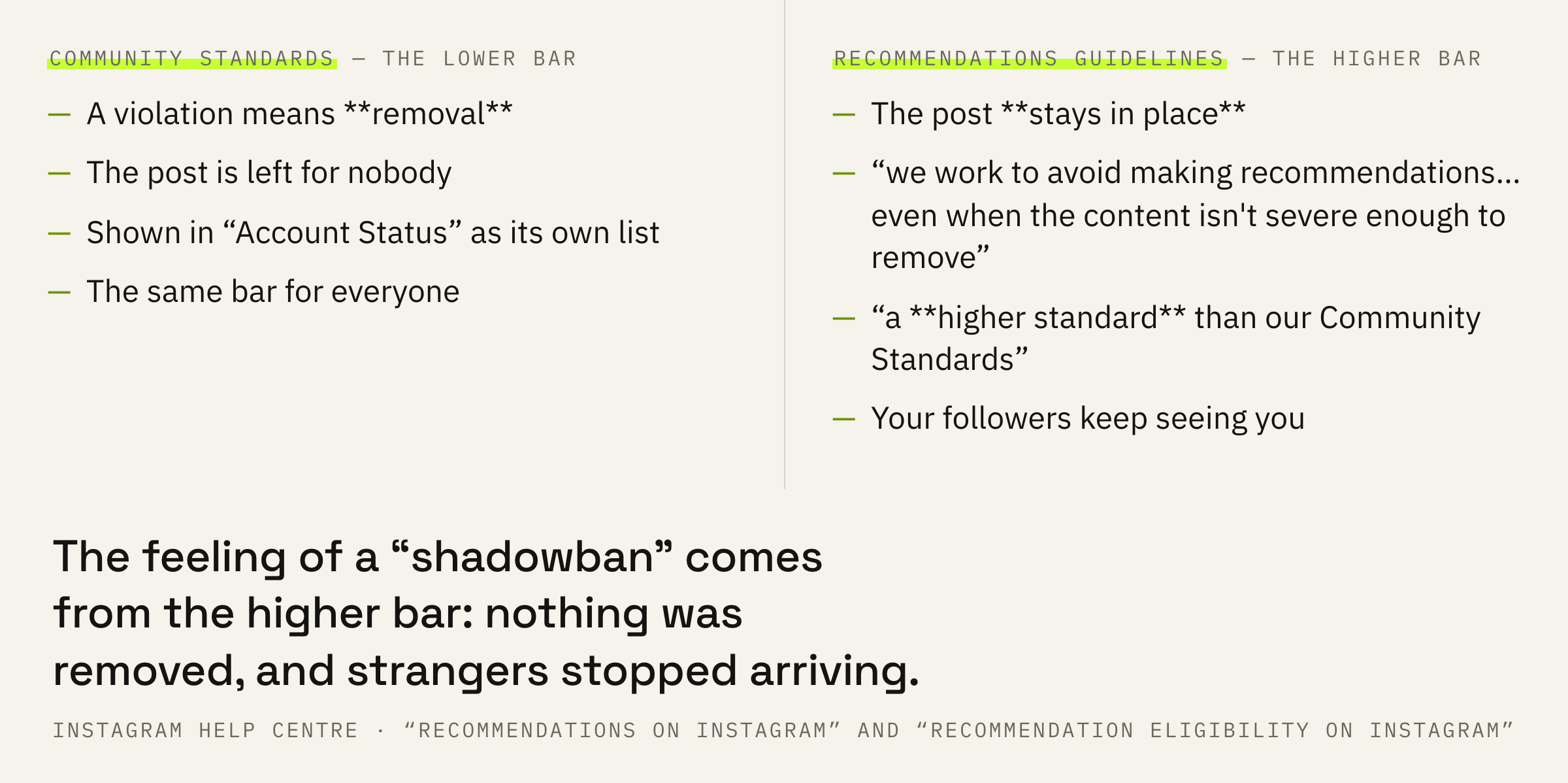
That is where the feeling of a shadowban comes from. The post is in place, it shows in your profile, followers open it, and strangers have stopped arriving. Nothing was removed, the second step is simply closed.
The whole account gets switched off
Not a single clip — the entire account.
Next comes the line that ruins the popular tactic of “I'll delete the bad post and things will recover”.
If your account is not eligible to be recommended, none of your content will be recommended regardless of whether or not all of your content goes against our Recommendations Guidelines.
Instagram Help Centre · “Recommendation eligibility on Instagram”
Recommendations are switched off at the account level. One piece of material that goes against the Guidelines closes the door for everything else, and deleting a single clip settles nothing while the status stays the same.
And the second line from the same page, the one worth opening this screen for.
Even if you're not eligible to be recommended, your content can still show up for your followers.
Instagram Help Centre · the same page
If reach has dropped but your followers keep seeing your posts, you have most likely lost recommendations rather than been hit by removal. If the content vanished for everybody, the conversation is about the Community Standards, and that is a different one.
We'll look at Account Status, the followers split and 90 days of insights and tell you whether it's a restriction or an ordinary dip.
There is a third line as well, honest to the point of being unpleasant: meeting the conditions promises nothing.
Note that your eligibility for recommendations doesn't guarantee that your content will be recommended.
Instagram Help Centre · the same page
The “Account Status” screen
Here everything is written in words rather than inferred from symptoms.
The check takes a minute and needs neither services nor test posts.
Settings → “More info and support” → “Account Status”. The section is available to professional accounts: the Help Centre says so directly.
The screen shows five things, and each one closes its own question.
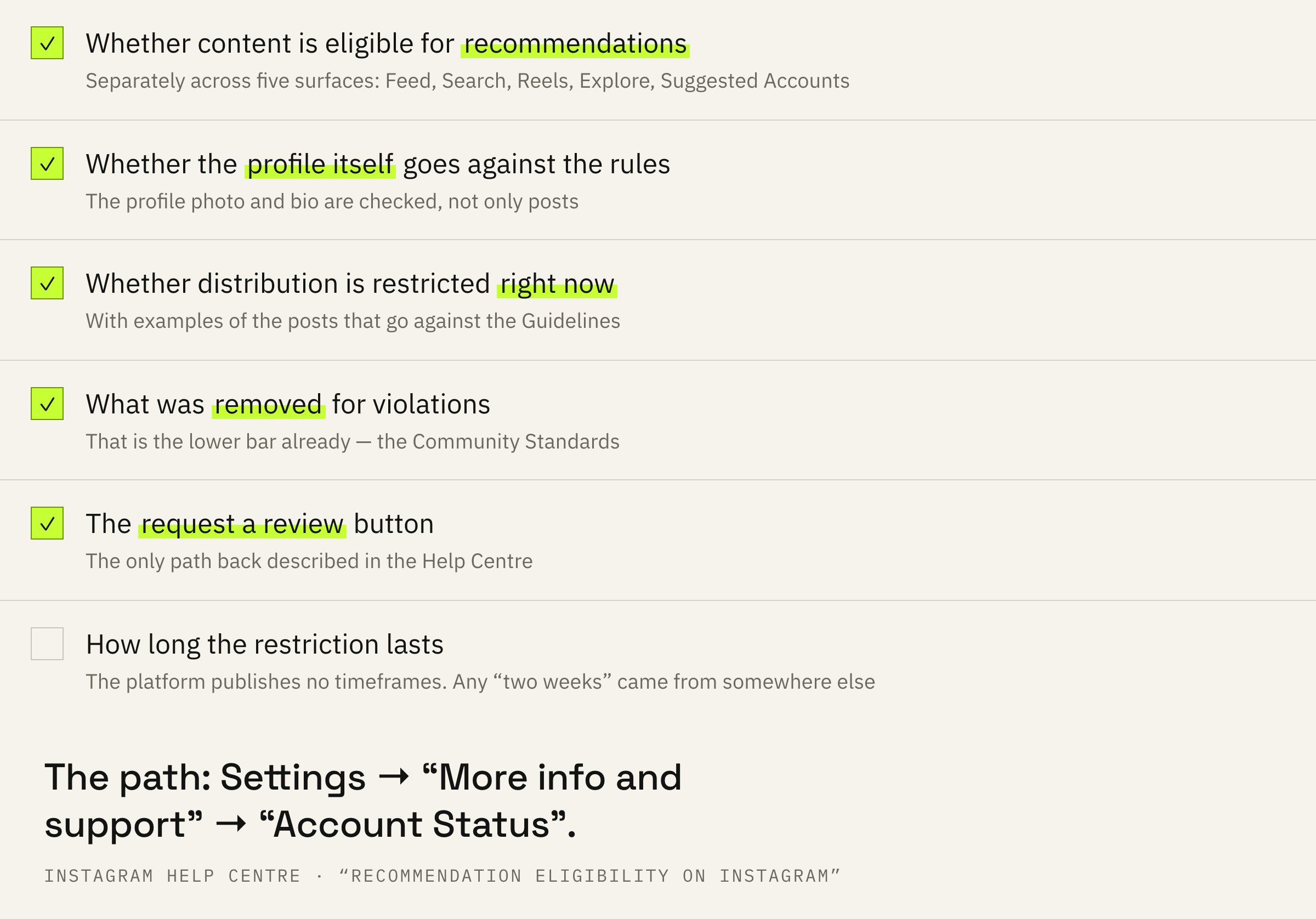
First: whether your content is eligible to be recommended in Feed, Search, Reels, Explore and Suggested Accounts. Five surfaces are listed separately, and that matters: you can drop out of some but not all.
Second: whether the profile itself goes against the Guidelines. Your profile photo and bio are checked, not only your posts — that is what people forget most often.
Third: whether distribution is restricted right now, and if so, examples of the offending posts are shown. Fourth: everything removed for violating the Community Standards. Fifth: the button to request a review.
An example of an offending post is the most useful part of the screen. It turns “I think they cut me down” into a specific piece of material you can reread and rewrite.
How to tell it from an ordinary dip
Three questions, each with a checkable answer.
The “Account Status” screen answers the question “is there a restriction”. It does not answer the question “why are there fewer views”, and those are different things.
First question: do your followers see you. For posts, stories and Live broadcasts, Instagram splits accounts engaged into your own and strangers, while reels have no such split. So this boundary has to be checked on posts and stories.
The second: is this about originality. Instagram has a separate rule: unoriginal content may become ineligible to appear in recommendations to people who don't already follow you, and that is covered separately.
The third: is this a dip at all. A drop in reach happens without any restrictions too, and comparison has to stay inside one format and inside the 90 days for which insights exist in the app at all.
The platform publishes no timeframes. Neither “it lifts in two weeks” nor “they review within 30 days” appears in the Help Centre. Any such figure came from somewhere other than the documents, and waiting by it is pointless.
The order of actions
Four steps, all checkable on their own screens.
First: open “Account Status” and read what is written there. Before that step any conclusion is a guess.
Second: if an example of an offending post is shown, reread it alongside the Recommendations Guidelines. Look not for “what am I being punished for” but for which specific rule is described there.
Third: if a restriction is in place, send a request for review — the button is on the same screen. At the same time put the profile in order: the photo and bio are checked on a par with posts.
Fourth: while the review runs, work with your followers. They do see you, that is written in the Help Centre, and stories and the following feed are not part of recommendations at all.
In a week compare two things: whether the text on the “Account Status” screen changed, and whether reach among followers is holding. The first answers the question about the restriction, the second the question about content.
What not to do
Three ways to lose time.
The fourth mistake is carrying the Threads procedure over here. Threads has its own status screen and its own wording, covered separately. The instructions are similar exactly enough to mix them up and hunt for the wrong menu item.