Reels quality: 720 pixels, 30 frames and a 420 × 654 cover
The Help Centre names a minimum frame rate, a minimum resolution and a cover size you cannot edit after uploading. Compression is never mentioned there.
- Social media and AI
- Mechanics breakdown
- ≈ 7 minutes
The video looked sharp on the phone and turned soft in the feed. The usual answer online is “the algorithm compresses it, upload in 4K”. The Instagram Help Centre says nothing about compression, yet it names four numbers and one toggle in the app settings that governs upload quality.
The minimum requirements the platform sets for a video. The exact cover size and why it cannot be changed after uploading. Where the quality toggle lives and what it charges for that quality. What the document does not promise at all. Seven minutes of reading.
30 frames per second and 720 pixels
The lower bound, below which the video is already spoiled.
The Help Centre makes do with one short line, and both numbers in it are worth remembering.
Reels should have a minimum frame rate of 30 FPS (frames per second) and minimum resolution of 720 pixels.
Instagram Help Centre · “Reel size & aspect ratios on Instagram”
This is a minimum, not a recommendation. Footage shot noticeably slower for the sake of a cinematic look easily falls below the bound the platform names, and from there the question is no longer about the algorithm.
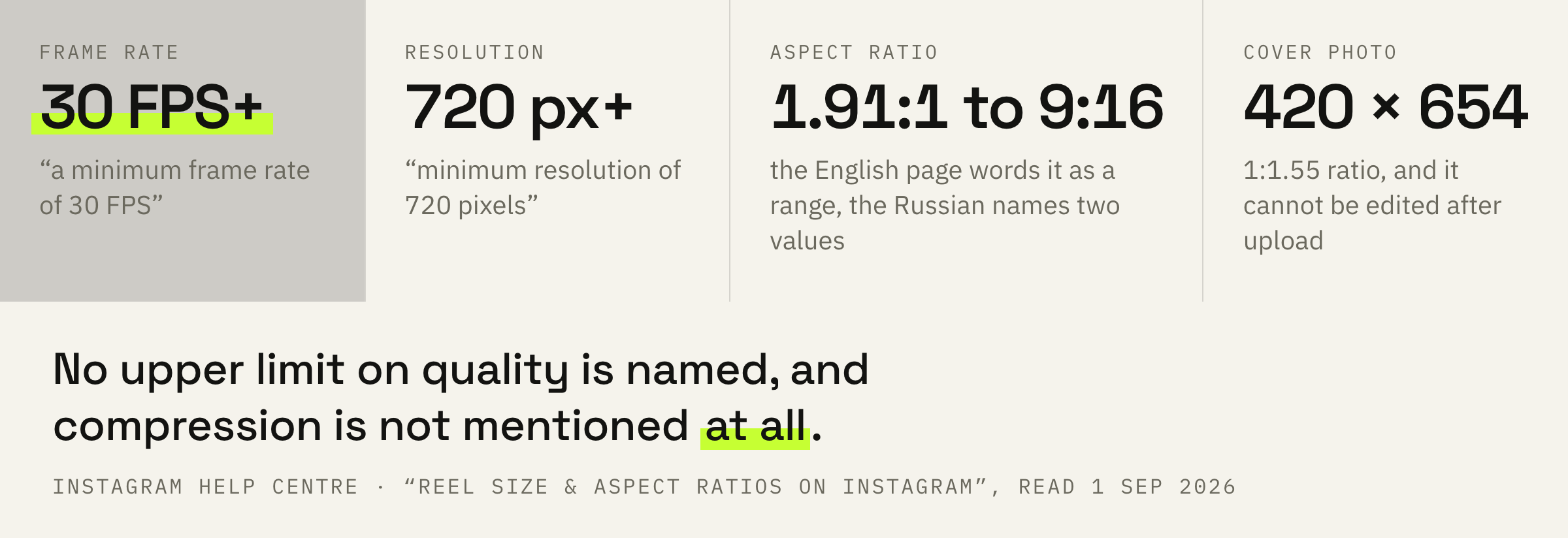
A resolution of 720 pixels sounds modest next to phones that shoot in 4K. The point here is different: it is the threshold below which a video counts as substandard on arrival. The Help Centre names no upper bound on this page at all.
Two permitted aspect ratios
The vertical and the wide horizontal, the two ends of one range.
You can upload a reel with an aspect ratio between 1.91:1 and 9:16.
Instagram Help Centre · the same page
The 9:16 aspect ratio gives the familiar vertical that fills the whole phone screen. The 1.91:1 value describes a wide horizontal frame, the same one that links with a picture use.
This is worth a pause. The Russian localisation of the same page puts it as two values: 1.91:1 or 9:16. The English wording names the span, the Russian one names two separate points.
A divergence between localisations of one page is not new here. The practical conclusion is simple: the 9:16 aspect ratio is named in both versions, and it is the only format you can vouch for.
A video shot any other way will be brought into its own frame by the platform. That is how Reels differ from the carousel, where the orientation is chosen once and applied to every file in the post.
Shoot with a 9:16 aspect ratio, keep the frame rate at 30 or above and do not drop the resolution below 720 pixels. Everything else remains a matter of taste, while these three numbers are named by the platform outright.
420 × 654: one shot at the cover
The one place where a mistake cannot be undone.
Next comes a line worth reading twice.
The recommended size for cover photos is 420px by 654px (or 1:1.55 ratio). Right now, you can't edit your cover photo after you've uploaded it.
Instagram Help Centre · the same page
The second half of the sentence costs more than the first. The caption can be edited, the tags can be edited, the cover cannot. The first frame grabbed in a hurry stays with the video forever.
The cover, meanwhile, decides how the video looks in the profile grid. Someone who arrives at a new profile sees it before the first seconds of the video.
The cover is prepared before publishing. Size 420 × 654, ratio 1:1.55. If the cover is already uploaded and you do not like it, the only way to change it is to post the video again.
The cover's 1:1.55 format differs from the video's 9:16 aspect ratio, so a frame cut from the video is cropped differently in the profile grid than it is in the video itself.
Upload at highest quality
The setting that explains part of the complaints about soft footage.
The Help Centre has a separate line about upload quality, and it answers the main question of the topic.
You can chose to always upload reel at the highest quality. Note it may take longer to upload reel of higher quality.
Instagram Help Centre · the same page
So the setting exists, it can be switched off and on, and the platform names the price honestly: uploading will take longer.
Your profile → the menu icon in the top right → “Your app and media” → “Media quality” → the “Upload at highest quality” toggle.
We'll look at your latest Reels and tell you where the quality is lost: at the shoot, on export, or in the upload setting.
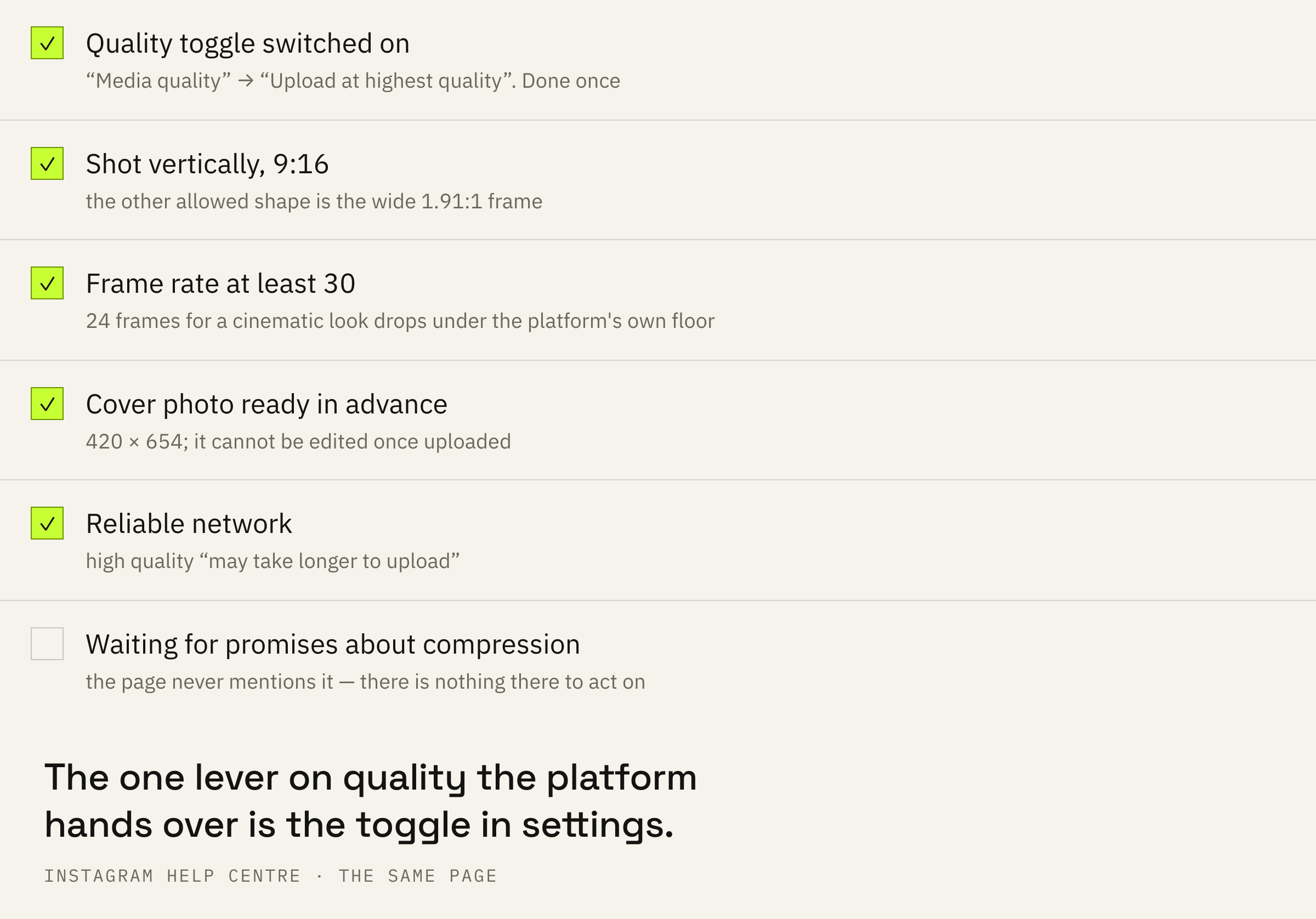
The setting is worth checking once, after which it works for every upload. This is the only quality lever the platform hands the user in plain words.
What the document does not say
Half of the advice circulating online is supported by nothing.
It is useful to name what the page does not say as well.
There is no promise to preserve the original quality. There is no word “compression” and no explanation of how it works. There are no bitrates and no codecs. There is no claim that uploading from a computer is gentler than uploading from a phone.
The main thing is missing too: any link between picture quality and distribution. The document describes the requirements for a file, not the rules by which videos are shown.
The platform explains the mechanics of distribution elsewhere, and a low view count has reasons of its own. Mixing these two topics means fixing the wrong thing.
The checks to run before publishing
Five points, three of them done once.
First: turn on the quality toggle in the app settings. This is done once.
Second: check that the filming is vertical and the frame rate is not below thirty.
Third: prepare the cover in advance, at a size of 420 × 654.
Fourth: upload on a stable connection, remembering that high quality means a longer send.
Fifth: look at the result in the feed on a device that is not yours, rather than stopping at the preview. The same method helps check how the video looks to a viewer rather than to its author.